
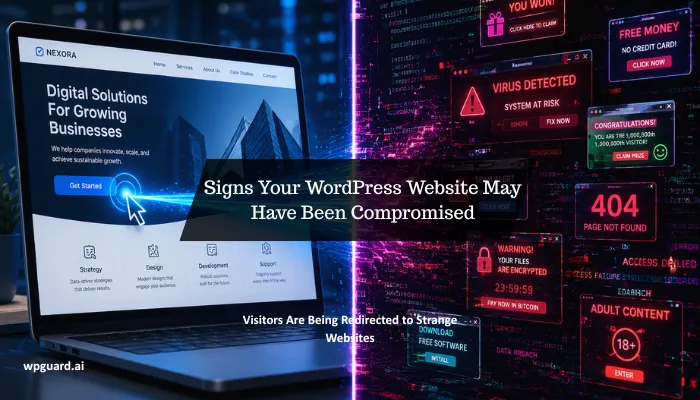
Is your WordPress site redirecting visitors to strange pages, loading more slowly than usual, or has Google just flagged it as unsafe? Those are some of the clearest signs your site has been compromised. And in most cases, you can confirm it within minutes (we’ll show you how later in this guide).
That said, WordPress won’t hand you the answer on its own. You can stare at your dashboard for an hour and see nothing out of place. Meanwhile, the real damage sits buried in a file or user list you never thought to check.
This is the kind of thing we dig up daily at WP Guard, and it’s usually the same handful of signs every time. Below, we’ll walk through the most common ones and exactly what you can do about them.
Visitors Are Being Redirected to Strange Websites
This is one of the most common signs of a hacked WordPress site, and also the easiest to miss. That’s because hackers design the redirect to fire only for regular visitors. As the site owner, you can load your site and see nothing wrong, while Google sends your visitors somewhere else entirely.
Most of them land on phishing pages, fake download sites, or spam storefronts. And any visitor it catches rarely comes back. We’ve seen injected code like this sit undetected for weeks, purely because the site owner never checked from outside their own login.
How to Fix It:
- First, confirm it. Open your site in an incognito window or check your URL with Google’s Safe Browsing checker to see if it has been flagged.
- Run a malware scan to locate and flag any injected code across your site.
- Open File Manager in your hosting account and sort files by last modified date. Any file with a recent modification date you didn’t cause is worth investigating.
- If a plugin is the source, deactivate and delete it from your dashboard. If it’s a file, your scanner should remove it or flag it for manual deletion.
- Change all admin passwords immediately after cleanup.
Google or Browsers Are Flagging the Site as Dangerous
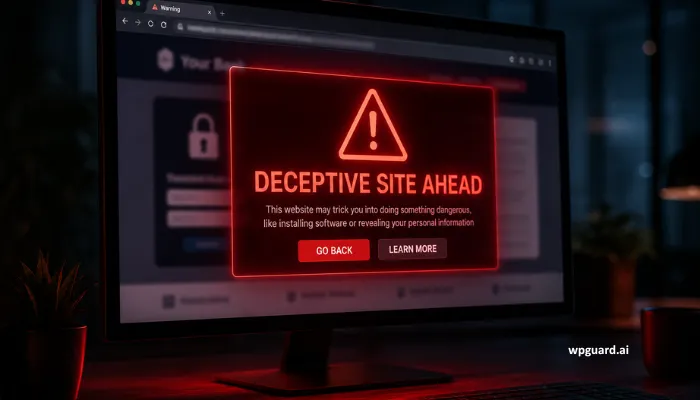
If visitors are hitting a “Deceptive Site Ahead” screen before they reach your homepage, most of them will click straight back to Google. This warning almost always means Google’s crawlers found malware, phishing pages, or spammy redirects somewhere on your site.
Once flagged, your traffic can drop overnight. And it stays that way until you clean the site and ask Google to review it again.
The damage doesn’t stop at the browser warning. Google also flags affected websites in search results, showing a “This site may be harmful” label under your URL. Users who never see the browser warning may still avoid clicking your site.
How to Fix It:
Open Google Search Console and go to the Security Issues report. It shows what Google detected and which pages are affected. Run a malware scan to remove the issue, then submit a review request through Search Console once the site is clean. Google removes browser warnings once it confirms the site is safe, usually within 72 hours.
Unfamiliar Admin Accounts Appeared in the Dashboard
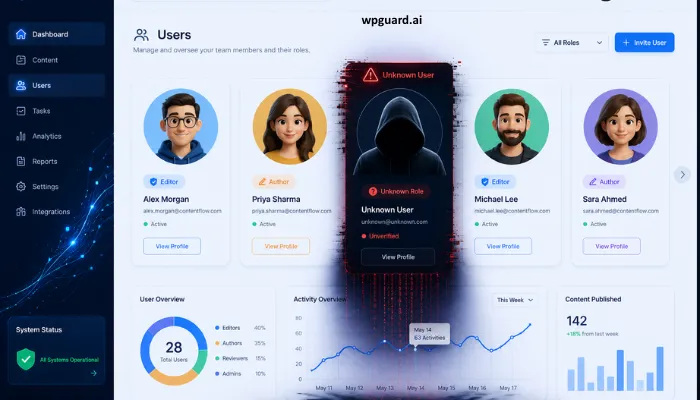
Resetting your password after a suspected hack is the right instinct, but it won’t do much if a hacker already created their own admin account. That account gives them full access to your site regardless of what you do with your own login.
And since WordPress doesn’t notify you when a new user gets added, these accounts can sit there for weeks without anyone noticing.
To find them, go to Users → Administrators in your dashboard and review the list of accounts. Hackers rarely use obvious usernames. Instead, they often create accounts with random characters or names that closely resemble legitimate users. If you spot an administrator account you don’t recognize or don’t remember creating, investigate it carefully.
How to Fix It:
- Delete any unfamiliar admin accounts immediately.
- Reset passwords for all legitimate users with admin access.
- Enable two-factor authentication for every admin account so new login attempts require a second verification step.
- Check your database user table for entries that don’t appear in the WordPress dashboard. Some backdoor accounts hide at the database level and won’t show up in the usual user list.
The Site Is Ranking for Spam Keywords
Hackers don’t always redirect visitors. Sometimes, they use your site to sell things you’ve never heard of. They do this by planting hidden pages deep in your file structure that sell counterfeit watches, knockoff sunglasses, or unapproved pharmaceuticals.
Before you know it, your site is selling products you never listed, without you ever seeing a single one of those pages yourself. These hidden pages are what people mean when they say a site is “ranking for spam keywords.”
The easiest way to spot them is to look at how your site appears in Google’s search results. Search “site:yourdomain.com“ and scroll through the results. Page titles you don’t recognize, especially ones selling products you’ve never sold, mean hackers have planted spam pages on your domain.
Spam pages like these can go undetected for months. Your homepage stays untouched the entire time, while Google quietly starts downranking your entire domain for content you never wrote.
How to Fix It:
- Search your file manager for unfamiliar folders or file names linked to the spam pages.
- Delete the spam pages and any related files.
- Run a malware scan to make sure no other injected content remains on the site.
- Submit a reconsideration request in Search Console to tell Google the site is clean.
Hosting Provider Suddenly Suspended the Account
A suspension email from your hosting provider is alarming, but they don’t suspend accounts for no reason. Unless you have a billing or payment issue, it’s almost always security-related. Most of the time, that means malware, outgoing spam, or a sharp spike in server load caused by an attack.
Worth Knowing: If your site runs on a shared hosting plan, a compromise on the same server can sometimes cause a suspension even if your own files are clean. It’s less common, but it happens.
How to Fix It:
Contact your host’s support team immediately and ask for the specific reason for the suspension. They’ll usually point you to the affected files or security events that triggered it. From there, run a malware scan, clean the site, and ask them to review and restore the account once it’s clear.
How to Prevent Malware and Keep Your WordPress Site Secure
Once your site is clean, the goal is keeping it that way. A handful of small habits close most of the security gaps attackers rely on:
- Update Everything Regularly: Outdated plugins and themes are the most common entry point for attacks because known vulnerabilities often remain unpatched long after fixes become available.
- Limit User Access Levels: Only grant users the permissions they need to do their jobs. An editor doesn’t need admin rights, and a contributor doesn’t need access to plugin settings.
- Install a Web Application Firewall: It blocks malicious traffic, bad bots, and common attacks like SQL injection and cross-site scripting before they reach your site.
- Run Regular Malware Scans: Regular scans catch threats early, before Google or your visitors do. Most security plugins handle this automatically once set up.
- Back Up Your Data Regularly: Make sure to store backups separately from the site. That way, you’ll still have a clean copy if the web server is compromised.
- Enable an SSL Certificate: SSL encrypts data transmitted between your site and its visitors, which helps keep login credentials and other sensitive information secure.
One thing we’d add from working with WordPress sites daily: most data breaches and compromises we see happen on sites that hadn’t been touched in months. Regular updates and monitoring make your site a much harder target.
Don’t Wait Until Something Goes Wrong
A hacked WordPress site rarely announces itself with a bang. Most of the time, it starts with something small, like a redirect, an unfamiliar admin account, or a sudden traffic drop, and grows until it’s hard to miss. By now, you know what to look for and what to do about it.
If you’ve spotted any of these warning signs, don’t wait for the problem to get worse. Remove anything suspicious, put the preventive measures in place, and get your site checked before attackers have another opportunity.
WP Guard helps make that process easier. Our team monitors WordPress sites around the clock, scans for malware and vulnerabilities, and alerts you to suspicious activity before it becomes a larger problem. Run a free scan today and see exactly where your website’s security stands.
Frequently Asked Questions
If you still have questions after reading through the signs and fixes above, these are the ones we hear most often from WordPress site owners.
What are the most common security threats to WordPress sites?
The most common security threats include malware infections, brute force login attacks, and cyber threats like phishing and spam injections. Outdated plugins and weak passwords are the biggest contributing factors. Staying on top of updates and monitoring your site regularly covers most of the risk.
How do I remove malware from my WordPress site?
Start by running a malware scan to locate the malicious code. Most security plugins will flag infected files and walk you through removal. Once the site is clean, change passwords, restore from a backup if needed, and submit a review request to Google if your site was flagged.
What is access control and why is it important?
Access control refers to who can do what on your site. Poor access control, like giving every user admin rights, means a single compromised account can cause serious damage. Limiting permissions to only what each user needs to do their job reduces your exposure to potential threats significantly.
